Firmware Flash – Setup
Flash firmware to the scent dispenser using a browser-based tool — no installation required.
Step 1 — Connect the UPDI Programmer
Firmware flashing uses a UPDI Friend programmer connected to the 3-pin header on the PCB — not the USB-C port (that is only for log download).
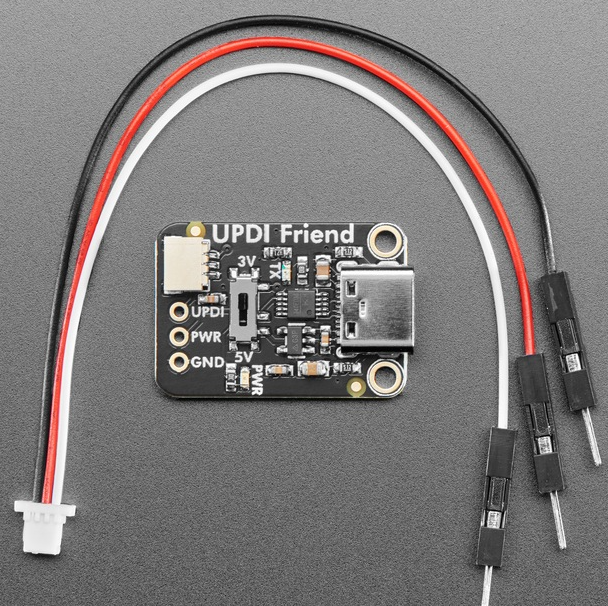
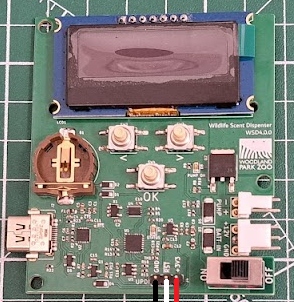
| Wire | Connects to | Notes |
|---|---|---|
| RED | 3V3 | Power |
| WHITE | RESET / UPDI | Data line |
| BLACK | GND | Ground |
Before connecting USB: double-check wiring order and confirm the switch on the UPDI Friend is in the 3V position (not 5V).
Windows Users — USB Drivers
Windows requires drivers to communicate with the USB devices. These are installed once and do not need to be reinstalled. Administrator access is required to install. If you lack admin rights, ask your IT department.
| Driver | Used for | Download |
|---|---|---|
| CH340 | UPDI programmer (firmware flash) | wch-ic.com ↗ |
| FTDI VCP | USB-C log port (log download) | ftdichip.com ↗ |
If you are unsure whether drivers are installed, connect the device and check
Device Manager for any yellow warning icons. Try unplugging and re-plugging
the USB cable after installing a driver.
Step 2 — Flash Firmware with WebUPDI
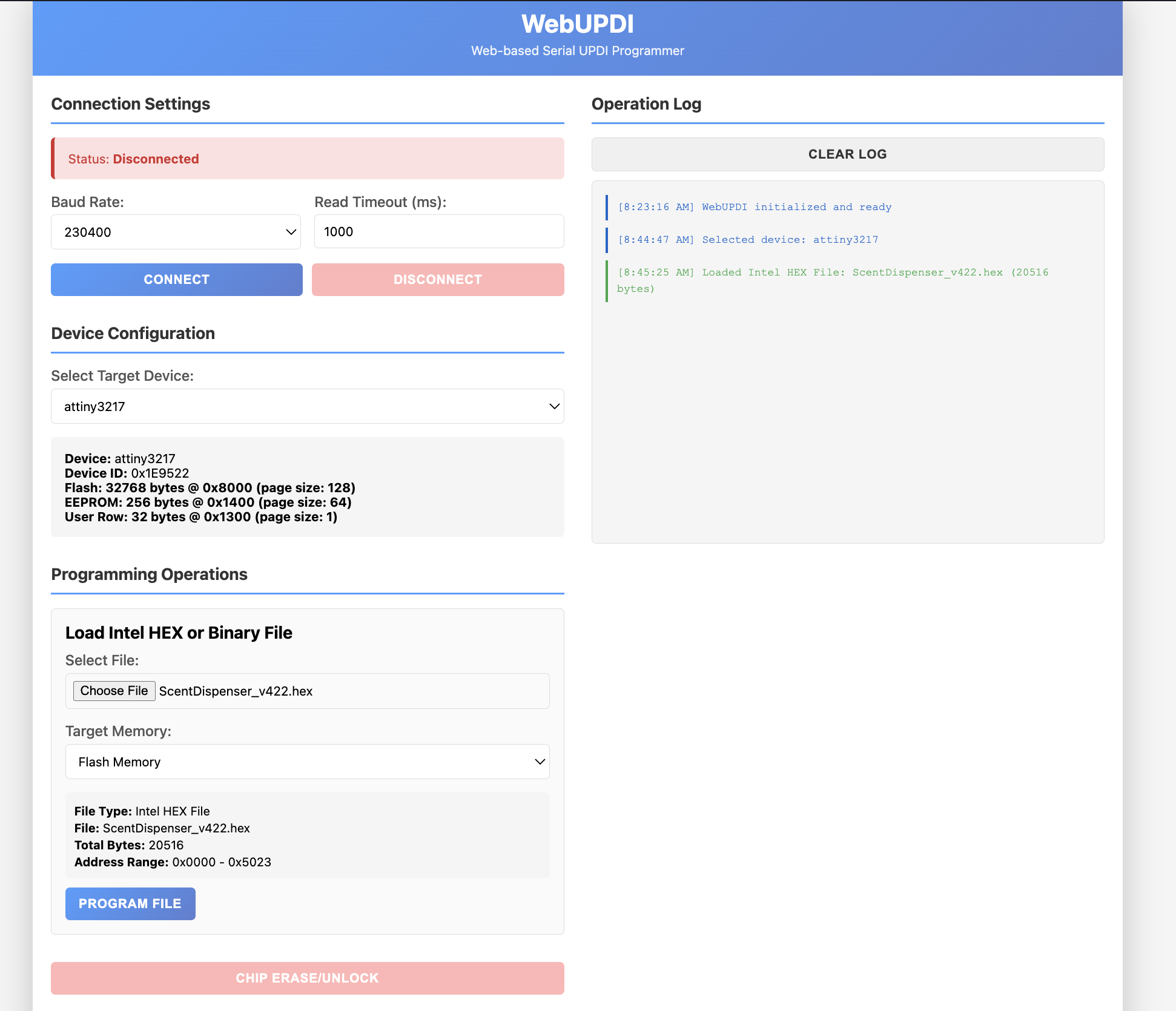
WebUPDI is a free browser-based flashing tool — no installation or Python required. It works on both Mac and Windows in Chrome or Edge.
- Open manuelkasper.github.io/webupdi in Chrome or Edge.
- With the UPDI programmer connected (Step 1 above), click Connect. Select the CH340 / USB Serial port from the browser dialog when prompted.
- Under Device Configuration, select
attiny3217from the dropdown. Device memory details will appear confirming the selection. - Under Programming Operations, click Choose File and select your
.hexfirmware file. Confirm Target Memory is set to Flash Memory. - Click Program File. The operation log on the right will show progress and confirm when complete.
When flashing multiple PCBs:
Always click Disconnect before unplugging the programmer. Simply unplugging without disconnecting can cause connection issues with the next board and may require unplugging and re-plugging the USB cable.
There is also a known bug: after flashing one board and connecting the next, you may see a "No file loaded" error. To fix it, click Choose File, select any file, then immediately choose the correct
Always click Disconnect before unplugging the programmer. Simply unplugging without disconnecting can cause connection issues with the next board and may require unplugging and re-plugging the USB cable.
There is also a known bug: after flashing one board and connecting the next, you may see a "No file loaded" error. To fix it, click Choose File, select any file, then immediately choose the correct
.hex file again. This reloads it properly.